


Snagit vs Rapidemo
Snagit and Rapidemo are built for different jobs. Snagit is TechSmith's screenshot-first capture tool, popular with technical writers and documentation teams, with lightweight video as a secondary feature. Rapidemo is built for polished, publishable screen videos with automatic zoom animations, cursor smoothing and animated subtitles. Here is how Rapidemo compares to Snagit for the video use case.Free to record and edit. License unlocks export.
Rapidemo is built for the video deliverable
Snagit is a screenshot tool with lightweight video bolted on. Rapidemo is video-first: it automatically zooms in on clicks, smooths the cursor, generates subtitles and animates layouts.
Automatic zoom on clicks
Rapidemo creates smooth zoom animations from your clicks automatically. Snagit doesn't include zoom animation in video.
Cursor smoothing
Rapidemo turns shaky mouse movement into a pleasant, smooth glide automatically. Snagit records the cursor motion as-is.
Animated layouts
Cut your video and pick a layout per clip: side-by-side, camera overlay, fullscreen. Transitions animate smoothly. Snagit doesn't include animated layouts.
Animated subtitles in one click
Transcribe your audio and add subtly animated subtitles. Snagit has no built-in captioning.
Customize without leaving the app
Rapidemo's timeline editor lets you tweak animations, add subtitles, customize cursors and switch aspect ratios, all without professional editing experience.
Switch aspect ratios in one click
Preview landscape, portrait and square video without re-editing. Rapidemo adjusts all animations and layouts automatically.
Animated camera overlay
Add your webcam and let Rapidemo scale it down smoothly during zoom animations to reveal more of the screen recording.
Full video editor
Tweak animations, cut clips, change backgrounds and adjust everything in Rapidemo's editor. Snagit's video editor is limited to trim and cut.
Crisp vector cursors
Rapidemo replaces pixelated system cursors with crisp vector graphics that stay sharp during zooms and can be resized or themed.
Free to record and edit. License unlocks export.
Rapidemo and Snagit comparison
Compare both tools side by side and see which fits your use case.
Rapidemo
|
Snagit | |
|---|---|---|
| Recording | ||
|
Record on Windows 10 and 11
|
||
|
Record camera and microphone
|
||
|
Unlimited recording length
|
||
|
Speaker notes
|
||
| Video editing | ||
|
Built-in timeline editor
|
||
|
Automatic zoom animations on clicks
|
||
|
Cursor smoothing
|
||
|
Animated subtitle generation
|
||
|
Animated side-by-side layout
|
||
|
Animated camera overlay
|
||
|
Multiple aspect ratios without re-editing
|
||
| Screenshots | ||
|
Screenshot capture and annotation
|
||
|
Scrolling capture for long pages
|
||
|
Step Capture (auto-numbered click guides)
|
||
| Exporting | ||
|
Fast 4K video exports
|
||
|
Smooth 60 frames per second
|
Rapidemo covers 13 of 16 categories in this comparison, including 8 Snagit doesn't.
When Snagit is the better fit
Snagit is the industry standard for annotated screenshots and lightweight clips. Pick Snagit if:
- Your primary need is screenshots and annotated images, not video.
- You write technical documentation, training materials or internal communications and need fast capture-and-markup tools.
- You rely on scrolling capture for long pages or Step Capture for auto-numbered click guides.
- You make short, low-stakes "snapshot-and-explain" clips to send to a colleague (TechSmith's own positioning).
If your deliverable is the video itself, polished and publishable, Rapidemo is purpose-built for that. TechSmith themselves route customer-facing video workflows to Camtasia rather than Snagit.
Keep exploring
Camtasia vs Rapidemo
Compare Rapidemo to Camtasia, Snagit's sibling product for full video editing.
Screen Studio vs Rapidemo
Compare Rapidemo to Screen Studio on auto-zoom, cursor smoothing, and platform support.
Best screen recorders for Windows
A ranked list of Windows screen recorders, each best at a different job.
Best Screen Studio alternatives
Screen Studio is macOS only. See the five best alternatives for Windows and beyond.
Frequently Asked Questions
Still got questions? Get in touch.
What is Rapidemo?
What makes Rapidemo different from other screen recording tools?
Can I try Rapidemo?
Yes. You can try all features, just download Rapidemo. To export your recorded video you'll need a license.
What Windows versions does Rapidemo work on?
Rapidemo was tested on Windows 10 and 11. It might work on earlier versions too. If you run into problems we're happy to refund you within our refund policy. ARM64 is currently not officially supported.
Can I record anything on my desktop or just my browser?
Rapidemo is a standalone app. This means that you can record anything on your desktop. This could be the entire screen or a specific window. Optionally, you can record your webcam and microphone too.
Does my lifetime license expire after a year?
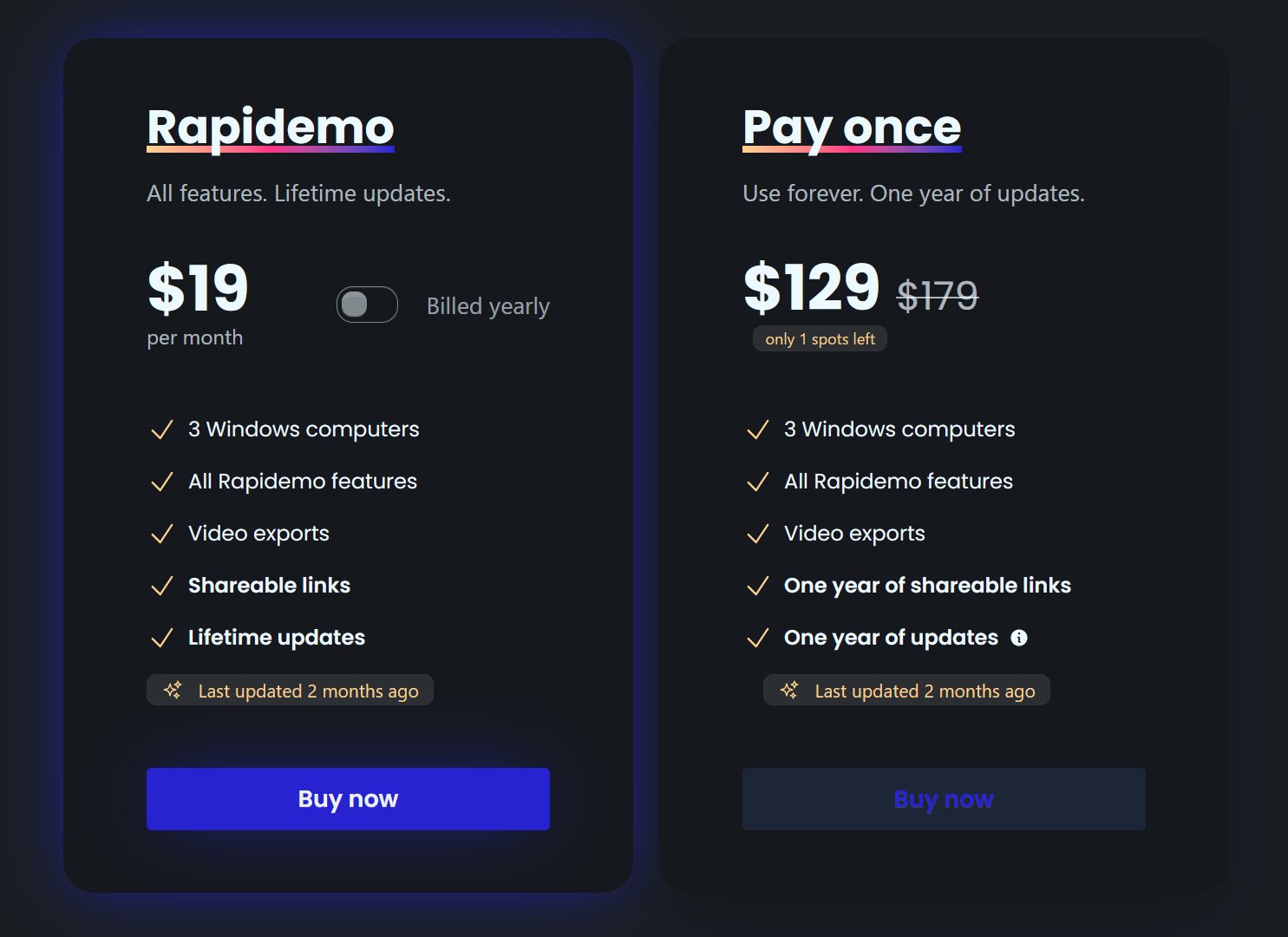
No. After purchasing a license, you can use Rapidemo forever. You'll receive updates until one year from the purchasing date. After that you can still use Rapidemo as-is, you'll just miss out on any new features.
What file format are videos exported to?
Rapidemo exports MP4 videos and automatically chooses the best bitrate settings for the chosen aspect ratio, resolution and frame rate.
Is there a student discount?
Who is Rapidemo designed for?
Can I get a refund if I'm not satisfied?
Are there versions for MacOS and Linux?
Rapidemo is currently built for Windows 10 and 11. macOS and Linux support is under evaluation, with no committed timeline yet.
Is my recording sent to the cloud?
No. Recording, editing, subtitle generation and video processing happens locally on your computer. Rapidemo only sends license-related data and basic error reports to the server. Error reporting helps us create a better user experience and improve Rapidemo. You can opt out of error reporting at any time in the app.
Can I renew my lifetime license to receive updates after expiration?
Yes. Renewals are available for $69. Renew to receive the latest updates for another year or continue using your existing version forever.
Do I need a new license if I switch PCs?
No. If you don't want to use Rapidemo on both PCs you don't need another license. You can just deactivate the license after logging in, and then activate it again on the other PC.
Do I need admin rights to install Rapidemo?
No. You should be able to install Rapidemo without admin rights. If you're in doubt, download Rapidemo for free and see if it works with your setup.
What Rapidemo users are saying
710+ creators record beautiful screen recordings with Rapidemo.
Rapidemo