
Most Windows users waste hours editing their screen recordings—here’s how to skip the hassle with Rapidemo.
(the link is in comments)
I'm testing out Rapidemo to see how Claude's new "Create&Edit styles" work.
Here's what makes Rapidemo special:
➤ It Makes Videos Look Great By Itself
↳ Follows your mouse around.
↳ Zooms in when you click.
↳ No need to edit your videos.
➤ Easy to Use Tools
↳ Add your face with a webcam.
↳ Record your voice.
↳ Get subtitles with one click.
What I Like Most:
I use Rapidemo to make video about Claude.
The videos look super neat without me doing extra work!
If you want to change anything, there's a simple editor you can use.
Remember: This only works on Windows users!
It is an even better alternative for Mac users that use ScreenStudio.
Quick Question: What do you use to record your screen?
P.S.
Claude writes this post.
What is cool is that Claude even remembered my symbols and the way I formatted my posts.

How to make screen recordings look professional
You do not need to be a video editor to make a recording that looks polished. A clean frame, tasteful zoom, a smooth cursor, and a crisp export are most of the battle, and Rapidemo handles the hardest parts automatically on Windows. Here is how.Free to record and edit. License unlocks export.
Rapidemo is built for Windows
Get a download link sent to your email for when you're back at your computer.
Make it look professional, step by step
"It looks a bit unprofessional" is the feedback nobody wants on their demo. The good news: looking professional is mostly a few fundamentals, not expensive editing, and Rapidemo automates the parts that usually take skill. Here is what to do.
-
1
Start with a clean, clutter-free screen
Professional recordings start before you hit record. Close noisy tabs and notifications, hide desktop icons, and record a specific window or area instead of your whole messy desktop. A calm frame reads as polished. -
2
Record with automatic motion polish
The difference between an amateur clip and a professional one is usually motion: a smooth zoom onto what matters and a cursor that glides instead of darts. Rapidemo adds both automatically on Windows, so you get that look without editing skills. -
3
Fine-tune the automatic zooms
Rapidemo adds zooms automatically. If a zoom looks off, remove or adjust it in the timeline, so each one lands on something worth emphasizing. -
4
Smooth the cursor and make it easy to follow
A jittery pointer is distracting. Rapidemo smooths the cursor path and swaps the pixelated system cursor for a crisp one you can resize and theme, so viewers can always find it. -
5
Add subtitles
Captions make a recording feel finished and keep it followable when watched muted. Generate them in one click and adjust the styling to match your content. -
6
Export in high quality so text stays crisp
Blurry text is the fastest way to look unprofessional. Export at a high resolution (up to 4K) and pick a high quality setting so on-screen text and UI stay sharp, then choose the aspect ratio your platform needs.
Professional-looking recordings: FAQ
Common questions about making screen recordings look professional.
How do I make a screen recording look professional?
Start with a clutter-free frame, add zoom only on the moments that matter, smooth the cursor, add subtitles, and export at a high resolution so text stays sharp. Rapidemo does the zoom, cursor smoothing, and subtitles automatically on Windows, so you get a professional result without editing skills.
Why do my screen recordings look amateur?
Usually it is a cluttered screen, a jittery cursor, no zoom to guide the eye, and a blurry export. Fixing those four things, ideally with a tool that automates the motion, is what makes a recording look professional.
Do I need video-editing skills to make professional recordings?
No. Rapidemo adds the polish (zoom, cursor smoothing, subtitles, layouts) automatically from a single take, then lets you fine-tune with simple controls, so you never need a traditional editor.
How do I stop my screen recordings from looking blurry?
Export at a high resolution and pick a high quality setting. Rapidemo exports up to 4K at 60 fps, so on-screen text and UI stay sharp.
Can I try Rapidemo for free?
Yes. Download Rapidemo and use every feature for free. You only need a license to export your finished video.
How much does Rapidemo cost?
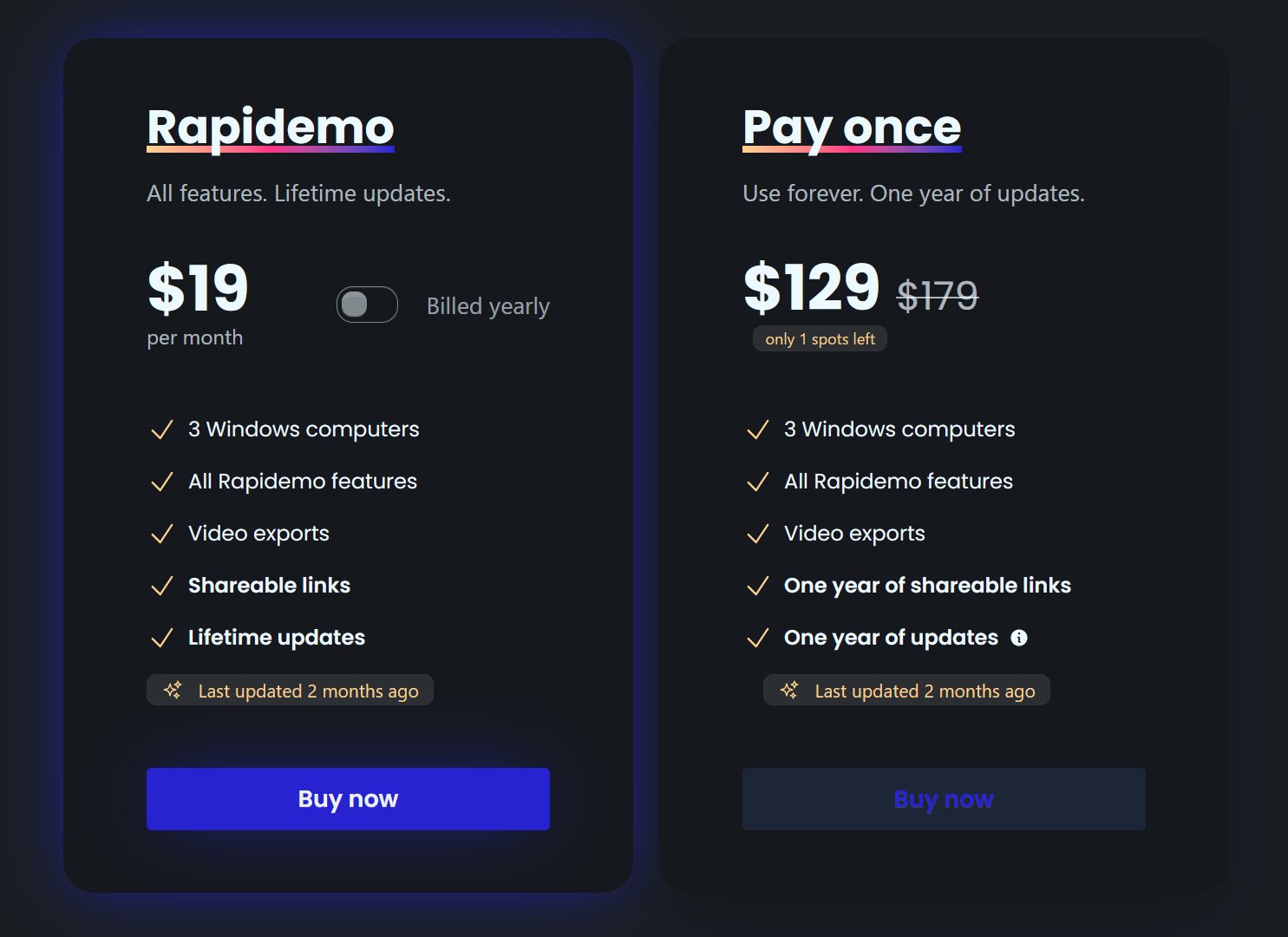
Rapidemo starts at $9/month billed annually, with a monthly plan and a one-time lifetime license also available. See the pricing page for full details.
Can I get a refund?
Yes. Lifetime license purchases are refundable within 7 days. Subscriptions and lifetime renewals are non-refundable.
What Rapidemo users are saying
900+ creators record their screen with Rapidemo. Here is what they say about it.
Sabahudin Murtić
AI Strategy & Implementation Partner
G
George
Really great app, perfect for making slick screen recording videos.
JC
Joe Cornell
This v1.33.0 update really rocks! I most like the option to browse to the location for the export. Using this feature makes it much easier for me to collect and track project videos.
AB
Abdesselam Belkhiri
excellent outil bravo ! très niché très utile, vite on récupère la valeur business !! :)
ととしま
@toyoshima_dev
Rapidemoめっちゃよかったから課金はしようと思うんだけど、買い切りにするか悩むねえ
使うときだけ毎月課金がお得なのは理解してるんだけど、俺は買い切りって言葉に弱えんだ
aron
@designbyaron
rapidemo is the sauce for windows
S
Sahand
After trying others, I can say there’s no real alternative to Rapidemo
HS
Harry Symons
Rafael TG
@r_a_f_a_e_l
nice. Rapidemo is nuts