 Rapidemo
Camera recording
Last updated:
If you’ve recorded your webcam, open the Camera recording properties to customize how your camera footage appears in the final video.
Background effects
Switch Enable on to cut yourself out of the camera picture, then pick what sits behind you with the Effect control:
- Blur hides a distracting room. Adjust the Strength with the slider.
- Image puts a gradient, a photo or a solid color behind you.
- Transparent drops the background entirely, so your screen recording shows through behind you. This also turns the camera’s shadow off.
Green screen and chroma key
Have a green or blue screen? Tick I have a green screen for a sharper cutout.
Rapidemo then chroma keys your footage, picking the Key color out of the video automatically. Set it yourself if the automatic pick is off.
Reuse a backdrop
The backdrop you choose rides Set as default, Apply to other scenes and presets, like the rest of your styling.
A preset carries the backdrop’s settings but not the picture itself, so applying one on another computer keeps the cutout without the image.
Shadow
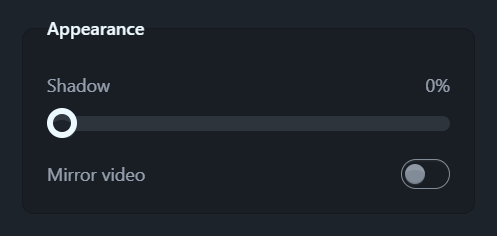
The Shadow control adjusts the drop shadow intensity of the camera recording. Set it to 0% to remove the shadow completely.
Mirror
Mirror video, in the same Appearance group, flips your camera footage horizontally, so your video matches what you’re used to seeing in a mirror or in video calls.
The camera’s position, size and border radius per Clip are set in the camera overlay layout.